How to Build Your First Looker Studio Dashboard: Step-by-Step Guide
Building your first Looker Studio dashboard can seem overwhelming, but with the right approach, you’ll have a professional dashboard running in under an hour. In this guide, I’ll walk you through creating your first dashboard from scratch, sharing practical tips I’ve learned from building 100+ dashboards over the past 8 years.
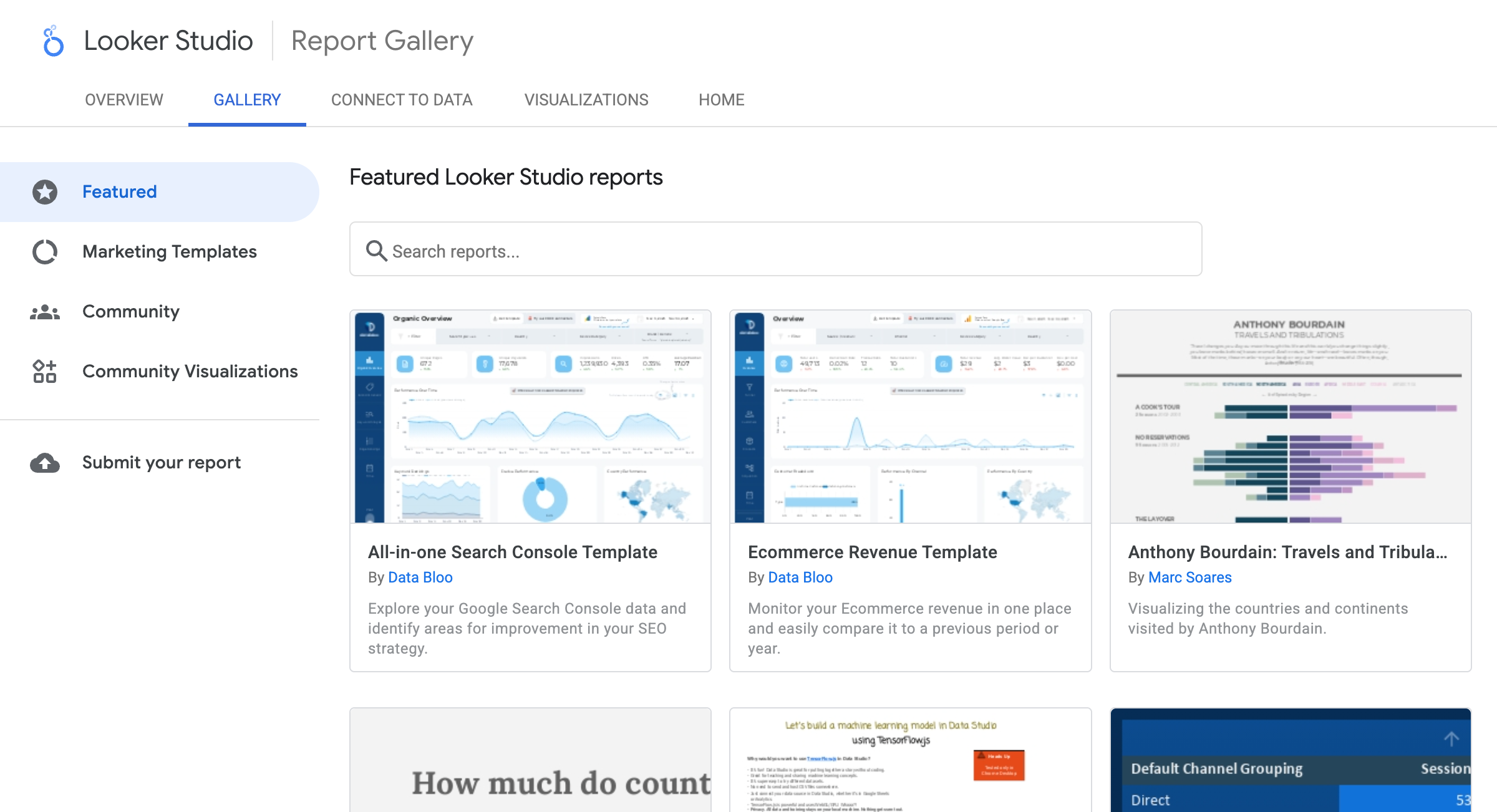
Why Looker Studio?
Before we dive in, let’s understand why Looker Studio is an excellent choice for your first dashboard:
- Free to use - No licensing costs or subscriptions
- Easy to learn - Intuitive drag-and-drop interface
- Powerful integrations - Connects to 100+ data sources
- Real-time updates - Automatic data refreshes
- Shareable - Collaborate with your team easily
Prerequisites
For this tutorial, you’ll need:
- A Google account (free)
- Access to a data source (we’ll use Google Sheets for this example)
- Basic understanding of spreadsheets
Step 1: Prepare Your Data
First, let’s set up a sample dataset. I’ll use a simple sales dataset as an example, but you can adapt this to your own data.
Create a Google Sheet
- Open Google Sheets and create a new spreadsheet
- Name it “Sales Data”
- Add the following columns and sample data:
| Date | Product | Category | Sales | Units | Region |
|---|---|---|---|---|---|
| 2024-01-01 | Widget A | Electronics | 1500 | 10 | North |
| 2024-01-02 | Widget B | Electronics | 2300 | 15 | South |
| 2024-01-03 | Widget A | Electronics | 1800 | 12 | East |
| 2024-01-04 | Widget C | Accessories | 900 | 20 | West |
| 2024-01-05 | Widget B | Electronics | 2100 | 14 | North |
Add at least 20-30 rows of data for better visualization. Make sure your first row contains headers.
Pro Tip: Ensure your data is clean - no empty rows, consistent date formats, and proper column names. This will save you time later.
Step 2: Create a New Looker Studio Report
- Go to lookerstudio.google.com
- Click the “Create” button in the top left
- Select “Report” from the dropdown
- You’ll be prompted to add a data source - we’ll do this in the next step
Step 3: Connect Your Data Source
- In the data source selection screen, search for “Google Sheets”
- Click on “Google Sheets”
- Select your “Sales Data” spreadsheet
- Choose the specific sheet (if you have multiple sheets)
- Click “Add” in the top right
Understanding the Data Source Panel
Once connected, you’ll see:
- Fields panel on the right - All your columns
- Field types - Dimensions (text, dates) and Metrics (numbers)
- Field properties - You can rename, change types, and create calculated fields
Important: Looker Studio automatically detects field types, but you may need to adjust them:
- Dimensions = Categories (Product, Region, Date)
- Metrics = Numbers you can sum/average (Sales, Units)
Step 4: Add Your First Chart
Now the fun begins! Let’s create a simple bar chart showing sales by product.
- Click “Add a chart” in the toolbar (or press
A) - Select “Bar chart”
- The chart will appear on your canvas
Configure the Chart
- In the Data panel on the right:
- Dimension: Drag “Product” to the Dimension field
- Metric: Drag “Sales” to the Metric field
- Your chart should now show bars for each product
Pro Tip: If your chart looks empty, check:
- Are your metrics showing as numbers (not text)?
- Do you have data in your source?
- Try clicking “Refresh data” in the toolbar
Step 5: Add More Visualizations
Let’s add a few more charts to make a complete dashboard:
Time Series Chart (Sales Over Time)
- Add a new Time series chart
- Set:
- Dimension: Date
- Metric: Sales
- This shows your sales trend over time
Pie Chart (Sales by Category)
- Add a Pie chart
- Set:
- Dimension: Category
- Metric: Sales
- This shows the distribution of sales across categories
Scorecard (Total Sales)
- Add a Scorecard
- Set:
- Metric: Sales
- Aggregation: Sum
- This displays your total sales as a large number
Step 6: Style and Format Your Dashboard
Adjust Chart Sizes
- Click on any chart
- Drag the corners to resize
- Arrange charts by dragging them around
Apply Consistent Styling
- Select a chart
- In the Style panel:
- Choose colors that match your brand
- Adjust fonts and sizes
- Add borders if needed
Best Practice: Use a consistent color palette across all charts. I recommend:
- Primary color for main metrics
- Neutral colors for secondary data
- One accent color for highlights
Add a Title
- Click “Insert” → “Text”
- Type “Sales Dashboard”
- Style it with a large, bold font
Step 7: Add Filters (Make It Interactive)
Filters let users explore the data themselves:
- Click “Add a control” → “Dropdown list”
- Set:
- Control field: Region
- Title: “Filter by Region”
- Place it at the top of your dashboard
- Users can now filter all charts by region
Pro Tip: Add filters for dimensions users care about most - date ranges, categories, regions, etc.
Step 8: Set Up Automatic Data Refresh
- Click on your data source (in the left panel)
- Click the three dots (⋮) next to your data source
- Select “Edit”
- Scroll to “Data freshness”
- Choose how often to refresh:
- 15 minutes for frequently changing data
- 1 hour for daily updates
- Daily for static or slowly changing data
Step 9: Share Your Dashboard
- Click the “Share” button in the top right
- Choose sharing options:
- “Viewer” - Can only view
- “Editor” - Can make changes
- Copy the link or add specific people
Security Tip: Be careful with “Anyone with the link” - only use this for non-sensitive data.
Common Mistakes to Avoid
Based on my experience, here are the most common mistakes beginners make:
1. Overcrowding the Dashboard
Mistake: Trying to show everything on one page Solution: Focus on 5-7 key metrics. Create multiple pages if needed.
2. Inconsistent Date Formats
Mistake: Mixing date formats in your source data Solution: Standardize dates to YYYY-MM-DD format before connecting
3. Not Using Filters
Mistake: Creating static dashboards Solution: Always add relevant filters - users want to explore data
4. Poor Color Choices
Mistake: Using too many colors or low-contrast combinations Solution: Stick to 3-4 colors maximum, ensure good contrast
5. Ignoring Mobile View
Mistake: Only designing for desktop Solution: Check mobile view (View → Mobile layout) and adjust as needed
Advanced Tips for Better Dashboards
Once you’re comfortable with the basics, try these:
Calculated Fields
Create custom metrics using formulas:
- In your data source, click “Add a field”
- Use formulas like:
Sales / Units // Average sale priceIF(Region = "North", Sales, 0) // Conditional logic
Blended Data Sources
Combine data from multiple sources:
- Click “Add a data source”
- Add your second source
- Click “Blend data”
- Select common dimensions to join on
Custom Date Ranges
Add a date range control:
- Add a control → “Date range control”
- Users can select custom date ranges
- All time-based charts will automatically filter
Next Steps
Congratulations! You’ve built your first Looker Studio dashboard. Here’s what to do next:
- Practice with real data - Connect your actual business data
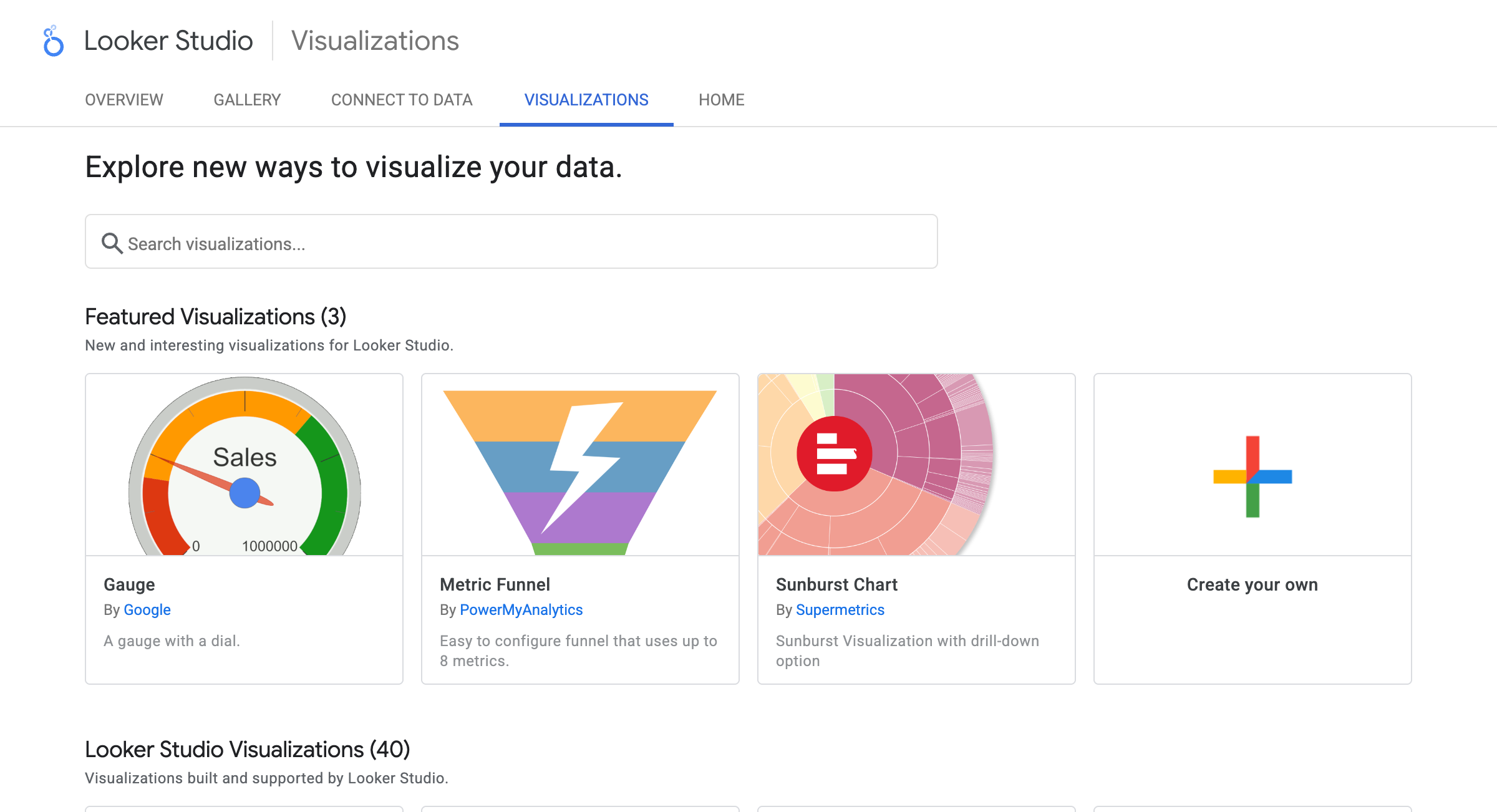
- Explore more chart types - Try tables, maps, and gauges
- Learn calculated fields - Create custom metrics
- Connect to BigQuery - For larger, more complex datasets
Need Help?
Building dashboards gets easier with practice, but sometimes you need expert help. If you’re struggling with:
- Complex data connections
- Performance issues
- Custom calculations
- Multi-source integrations
Schedule a free consultation and I’ll help you build dashboards that drive real business value.
Conclusion
Looker Studio is a powerful tool that doesn’t require coding knowledge, making it accessible for anyone. Start simple, practice regularly, and don’t be afraid to experiment. The best dashboards are built iteratively - start with basic charts and refine based on user feedback.
Ready to build your first dashboard? Contact me if you have questions or need personalized help.
This guide is based on 8+ years of hands-on experience building Looker Studio dashboards for businesses across industries. Want to see more advanced techniques? Check out our guides on Connecting BigQuery to Looker Studio and BigQuery Cost Optimization.
Related Posts
Connecting BigQuery to Looker Studio: Complete Setup Guide
Learn how to connect BigQuery to Looker Studio with this comprehensive guide. Covers authentication, custom queries, performance optimization, and troubleshooting common issues.
Creating an E-commerce Sales Dashboard in Looker Studio
Build a complete e-commerce sales dashboard in Looker Studio. Track revenue, orders, product performance, and customer insights with this step-by-step guide.
Marketing Attribution Dashboard: Track Campaign ROI in Looker Studio
Build a marketing attribution dashboard in Looker Studio to track campaign ROI, channel performance, and customer acquisition costs. Includes multi-touch attribution models.